Approx. 7 minutes read
This is the first in what will hopefully be a series about applications I use and want to share.
I spend most of my day in a terminal, controlling my computer with a keyboard.
If you’re similar, you probably know the slightly jarring experience of switching to a traditional web browser — suddenly you’re in a world of mouse-driven interfaces that feels disconnected from your usual workflow.
The Browser Problem
Most browsers today are optimized for the average user, which means:
- Mouse-first navigation with lots of UI chrome
- Limited customization beyond basic settings
- Sync-everything mentality that often requires accounts
- Feature creep with AI assistants, reading modes, and productivity tools
This doesn’t align well with how I prefer to work. I want something more minimal.
Enter Qutebrowser
Qutebrowser is a keyboard-driven, vim-like browser with a minimal GUI.
It follows similar principles to tools like neovim and dwm: modal editing, text-based configuration, and getting out of your way.
Why Not Firefox or Chrome?
Don’t get me wrong — Firefox and Chrome are solid browsers. But they have some friction points for keyboard-heavy workflows:
- Mouse-centric design — keyboard shortcuts exist, but the UX assumes you’re clicking
- Extension dependency — tools like Vimium help, but you’re working against the grain
- Configuration complexity — customizing beyond basic preferences can be painful
- Feature accumulation — Pocket, sponsored shortcuts, AI features that I don’t really need
Qutebrowser takes a different approach. It’s built from the ground up for keyboard navigation and comes pretty minimal out of the box.
Qutebrowser runs on QtWebEngine, so web compatibility is generally excellent.
Chrome extensions don’t work, but you can use Greasemonkey scripts and Python-based userscripts instead.
Core Features
Here are some of the core features that make Qutebrowser stand out.
Modal Editing
Qutebrowser uses a modal editing paradigm similar to vim, where you can switch between different modes for different tasks.
The main thing is that the entire browser, and thus most well written websites, can be navigated using the keyboard.
When you launch Qutebrowser, you start in normal mode where you can navigate using vim-style keys.
Basic navigation includes:
| Command | Action |
|---|---|
j/k |
Scroll |
h/l |
History |
o/O |
Open URL |
J/K |
Switch Tab |
yy |
Copy URL to Clipboard |
You can switch modes via the following commands:
| Command | Action |
|---|---|
f/F |
Hints Mode |
i |
Insert Mode |
v |
Caret Mode |
: |
Command Mode |
? |
Find Mode |
C-v |
Passthrough Mode |
When you’re in hints mode, letters appear over links and you can type the letter to follow the link like below:
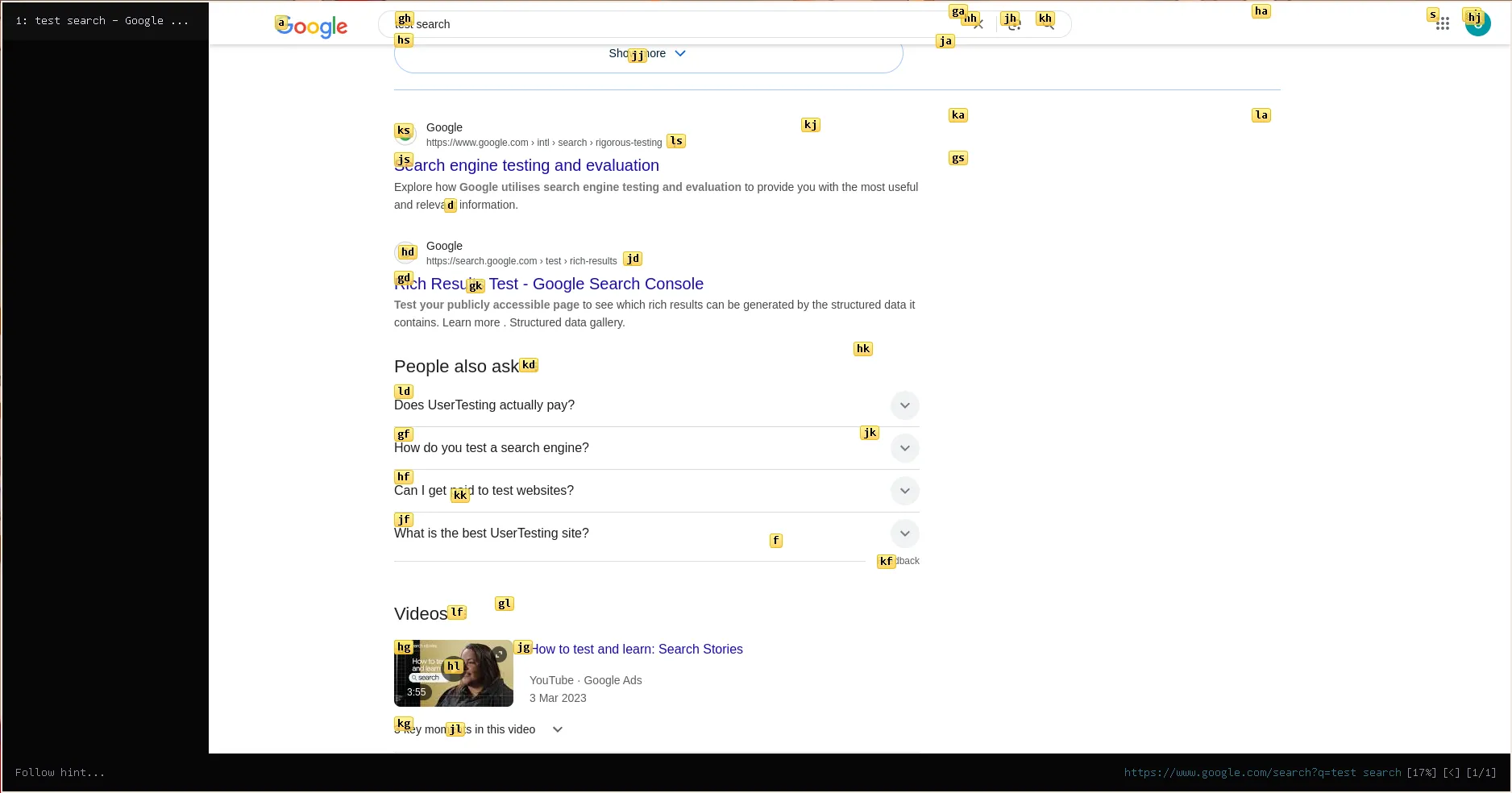
Here, typing
jswould click the first search result.
When you’re in insert mode, you can type text into the page like a normal text editor. Usually focusing on an input element will do this for you.
Lastly, when you’re in passthrough mode, Qutebrowser’s normal keybindings are disabled, and you can type freely into the page as if you were using a regular browser.
The other modes are more self-explanatory, but you can find more details in:
Search Engines, Quickmarks, and Bookmarks
You can configure search engines and quickmarks in your config.py.
Search engines work like this:
c.url.searchengines = {
  'DEFAULT': 'https://google.com/search?q={}',
  'aw': 'https://wiki.archlinux.org/?search={}',
  'gh': 'https://github.com/search?q={}',
  'yt': 'https://youtube.com/results?search_query={}',
}
Then typing :o aw nixos will search for nixos on the Arch Wiki. Pretty handy.
Quickmarks are like bookmarks but better — you can name them and fuzzy search.
Add one with :quickmark-add https://example.com test, then open it by:
- Running
:quickmark-load test - Using
o/Oand fuzzy searching fortest
The command mode gives you a nice fuzzy-finder that searches through URLs, quickmarks, and commands:
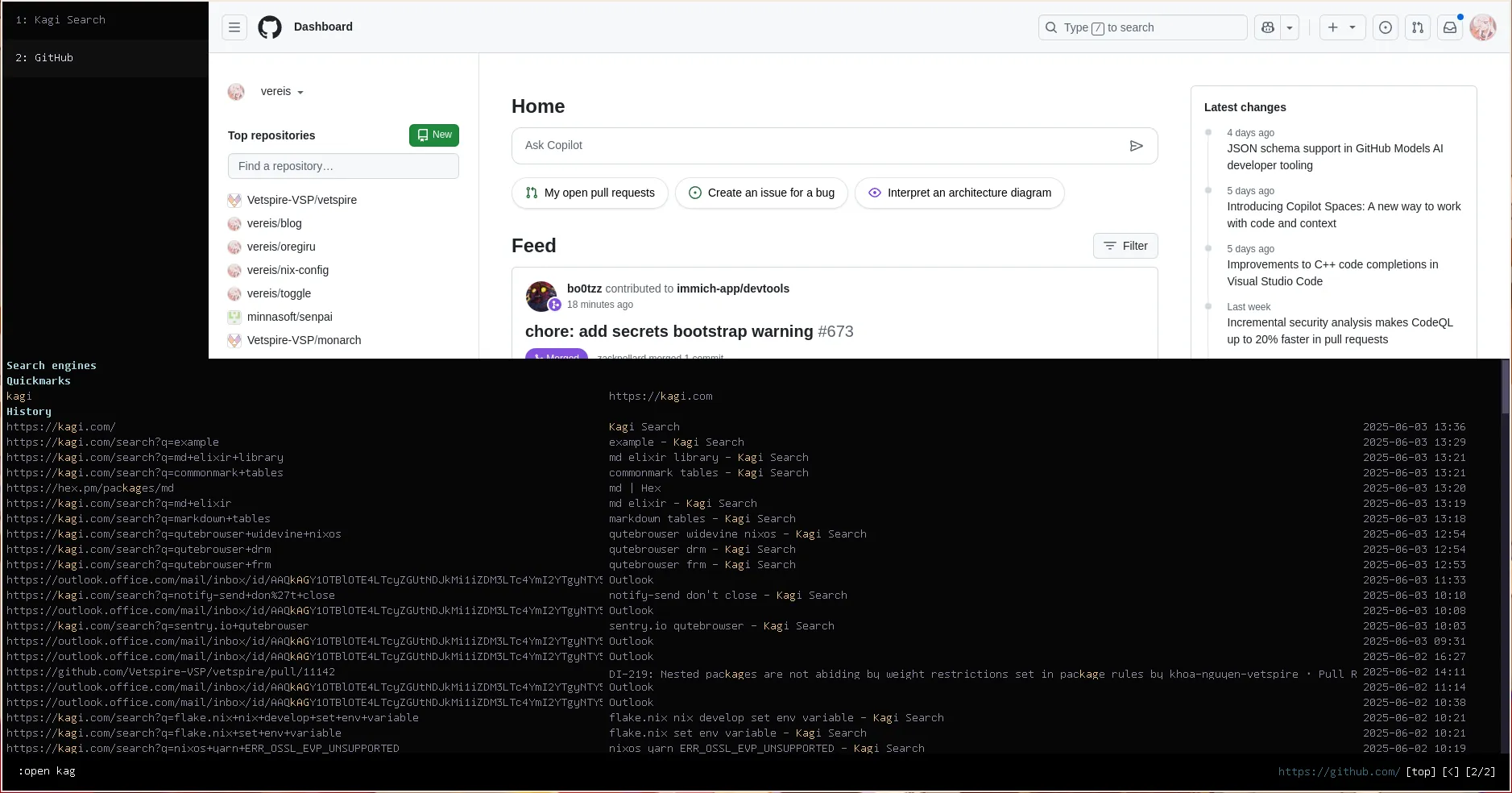
You can start typing to filter the list, and hit
Enterto execute the command.
I prefer quickmarks over regular bookmarks since you can give them meaningful names and search for them easily.
Normal bookmarks exist too, but I don’t really use them.
Check the command docs for the full list of what’s possible.
Built-in Adblocking
Qutebrowser supports two types of adblocking:
- Hosts-based Adblocking
- Brave’s Adblock Lists
Adblocking is enabled by default and works well out of the box.
c.content.blocking.method = 'both'  # Uses both hosts and adblock lists
c.content.blocking.adblock.lists = [
  'https://easylist.to/easylist/easylist.txt',
  'https://easylist.to/easylist/easyprivacy.txt',
]
On first run, you might need to run :adblock-update to download the lists.
The defaults work fine for most sites, but hosts-based blocking isn’t perfect. YouTube ads, for example, are served from the same domains as the content, so they slip through.
You can work around this with Greasemonkey scripts, or set up a keybind to open videos in
mpv:Honestly though, I just pay for YouTube Premium. It’s worth it.
Per Site Javascript and Styling
Back in the day, I used to use NoScript to block JavaScript on a per-site basis.
I don’t rely on this very much anymore, but Qutebrowser supports this too.
You can use the configuration file to run Greasemonkey scripts, or disable JavaScript on a per-site basis.
c.content.javascript.enabled = True  # Enable JavaScript by default
c.content.javascript.can_access_clipboard = False  # Disable clipboard access
You may find it useful to disable JavaScript on the fly for certain sites, which you can do with the following command:
config.set('content.javascript.enabled', False, 'https://example.com')
If you’re familiar with Greasemonkey scripts, you can use them to basically inject and run JavaScript on demand.
There isn’t a built-in UI for managing your scripts, but Qutebrowser will read all files matching
<qutebrowser_dir>/greasemonkey/*.js
There’s an official guide which might prove helpful too, and this is briefly covered in the FAQ.
Keybindings
The magic of Qutebrowser lies in its keybindings.
All of the supported commands can be bound to keys, and can be toggled or executed on the fly as needed.
I keep my configuration pretty minimal, but it’s useful to toggle features with keybinds.
config.bind('<Ctrl+Shift+s>', 'session-save')
config.bind('<Ctrl+Shift+l>', 'session-load')
config.bind('<Ctrl+Shift+a>', 'adblock-toggle')
config.bind('<Ctrl+Shift+j>', 'config-cycle content.javascript.enabled')
The session save/load commands are particularly handy for deterministic tab management.
I prefer using
:session-saveand:session-loadover something like Chrome’s “restore tabs” feature, because its deterministic and simple.Qutebrowser will, however, restore the last session automatically on startup, so you don’t have to worry about losing your tabs.
Installation
Qutebrowser is packaged for most platforms, so installation is usually straightforward.
Linux
Most distributions have qutebrowser in their repos:
sudo apt install qutebrowser
sudo pacman -S qutebrowser
sudo dnf install qutebrowser
sudo zypper install qutebrowser
macOS
The easiest way is via Homebrew:
brew install qutebrowser
Windows
You can install via winget:
winget install qutebrowser.qutebrowser
Or download the installer from the releases page.
NixOS
I use home-manager to manage qutebrowser:
programs.qutebrowser = {
  enable = true;
  settings = {
    url.searchengines = {
      DEFAULT = "https://kagi.com/search?q={}";
      gh = "https://github.com/search?q={}";
      aw = "https://wiki.archlinux.org/?search={}";
    };
  };
};
You can see my full config in my dotfiles.
First Run
On first launch, qutebrowser will create a config directory and prompt you to run :adblock-update to download blocklists.
The config directory locations are:
- Linux:
~/.config/qutebrowser/ - macOS:
~/.qutebrowser/ - Windows:
%APPDATA%/qutebrowser/
DRM Content (Netflix, etc.)
For DRM-protected content, you’ll need Widevine support:
- Arch Linux: Install
qutebrowser-widevinefrom the AUR. - NixOS: set
enableWidevine = truein your qutebrowser package override. - Other distributions: You’ll need to manually patch the widevine library. The process varies by distro, so search for your specific setup.
You can easily enable Widevine support in NixOS by overriding the qutebrowser package in your
home.nixorconfiguration.nix:
Configuration Tips
Once you get qutebrowser running, there are some quality-of-life improvements worth setting up.
Themes and Appearance
Qutebrowser doesn’t come with many built-in themes, but you can customize colors and fonts in your config.py:
# Rose Pine theme (my current setup)
c.colors.completion.fg = '#e0def4'
c.colors.completion.odd.bg = '#26233a'
c.colors.completion.even.bg = '#191724'
c.colors.completion.category.fg = '#9ccfd8'
c.colors.completion.item.selected.bg = '#31748f'

# Or just use a darker background
c.colors.webpage.darkmode.enabled = True
c.colors.webpage.darkmode.policy.images = 'never'
Useful Keybinds
Beyond the basics, these are handy:
config.bind(',d', 'download-open')
config.bind(',i', 'devtools')
config.bind(',D', 'config-cycle colors.webpage.darkmode.enabled')
Userscripts
Qutebrowser ships with some useful userscripts. For example, you can use qute-pass to manage passwords:
config.bind(',p', 'spawn --userscript qute-pass')
config.bind(',P', 'spawn --userscript qute-pass --username-only')
You’ll need pass and potentially dmenu set up for this to work.
Common Issues
Here are some problems you might run into and how to fix them.
Sites That Don’t Work
Some sites are broken or annoying in qutebrowser:
- Certain sites might block Qutebrowser’s user-agent, but you can change it in your config.
- Certain heavier web apps (like Google Docs) may not work well due. I don’t run into these often though.
You can change the user-agent like this:
c.content.headers.user_agent = 'Mozilla/5.0 (X11; Linux x86_64) AppleWebKit/537.36 (KHTML, like Gecko) Chrome/58.0.3029.110 Safari/537.3'
And honestly, I just use non-web apps for most of my work anyway, so I don’t run into these issues often. If you do, see if the app has a native client or use a different browser for those specific sites.
Clipboard Integration
If copy/paste doesn’t work properly on Linux, you might need xclip or wl-clipboard installed depending on your setup.
This should work out of the box on Windows, and macOS.
Conclusion
Qutebrowser is a powerful, keyboard-driven browser that prioritizes simplicity, privacy, and customization that gets out of your way.
If you want to better align and control your web browsing experience, especially if the rest of your workflow is keyboard-driven, I highly recommend giving Qutebrowser a try.
There are some alternatives like:
- Nyxt which is Lisp-based and seems super powerful.
- Surf which is a minimal web browser based on WebKit.
There are extensions for other browsers that try to enable more keyboard-driven navigation, but the WebExtensions API is not as flexible and often aren’t as fully featured.
If you’re interested in using extensions, you might want to look into:
I’d recommend the following further reading if you’re interested in Qutebrowser:
Hopefully, this post has given you a good overview of Qutebrowser and why I use it.